How to Download and Print a Design From Canva or Adobe Express as a PDF
PDF Files Created in Canva or Other Online Programmes
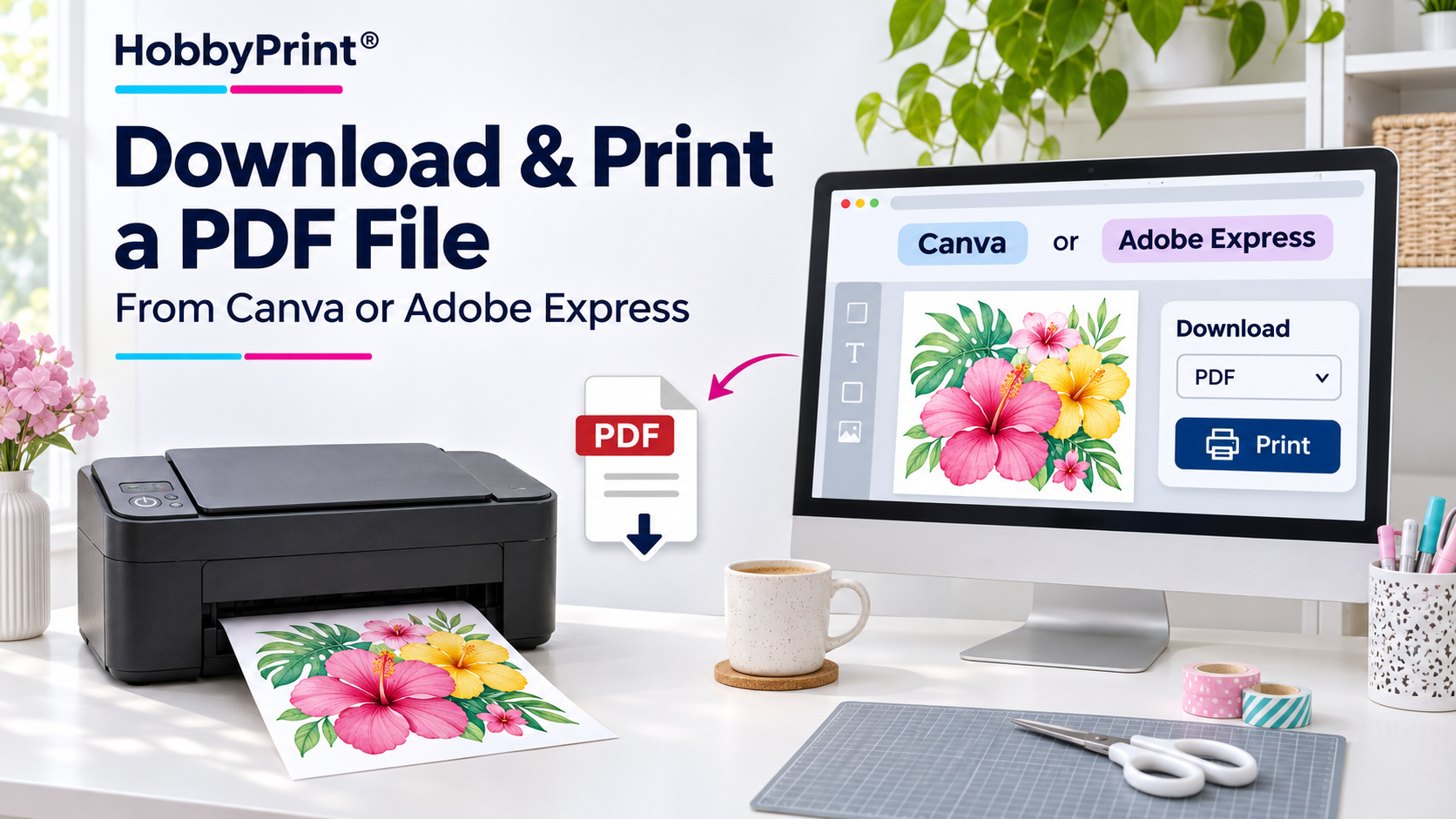
Using online design creation software is a growing trend. Aplications like Canva or Adobe Express is becoming more popular. A popular file choice to download a deign is the PDF format. A PDF can be downloaded and printed from online software programmes and it will produce great and colourful prints.
There is a correct method to achieve this as follows. A step-by-step workflow to use to retain accurate colours when printing a downloaded PDF, involves the following configuration adjustments:
1. The Right Download Setting (In Canva/Online Apps)
- The Setting: When downloading from Canva, the customer must select PDF Print (not PDF Standard).
- The Reason: “PDF Print” exports the file at a high-resolution 300 DPI. If you have a premium account, you should also select CMYK as the colour profile rather than RGB, as this prepares the file’s colours specifically for physical inks.
2. Opening the Downloaded File in Adobe Acrobat
- The Setting: The customer must open the downloaded PDF directly inside Adobe Acrobat Reader or Adobe Acrobat Pro.
- The Reason: Double-clicking a PDF often opens it in Google Chrome, Microsoft Edge, or Apple Preview. These browsers and default viewers are built for screens, completely lack colour management pipelines, and will ignore or strip away any embedded colour profile data.
3. Activating the ICC Profile in Acrobat’s Print Menu
Once inside Adobe Acrobat, the customer must manually route the file through the ICC profile using the standard print dialogue box:
- Colour Handling: In Acrobat’s advanced print settings, they must change the colour handling option to “Let Application Manage Colors” (or “Acrobat Manages Colors”). [1]
- Selecting the Profile: They then select the specific printer/ink/paper ICC profile from the dropdown menu. [1]
- Turning Off Printer Driver Intervention: Crucially, when clicking into the printer’s native ‘Properties’ menu, they must set the colour correction to “No Color Adjustment” (or turn off ICM/Vivid mode). This prevents “double profiling”—a common mistake where both Adobe and the printer driver try to fix the colours simultaneously, resulting in a muddy or distorted print.
Summary
Download the design as a high-quality “Print PDF” ➔ Open it exclusively in Adobe Acrobat ➔ Tell Acrobat to apply the specific ICC profile while turning off the printer’s automatic colour fixes.
Hopefully this will help Canva and Adobe Express users not only get great designs, but will help get great prints also.