Getting the Best Results from Your Printer
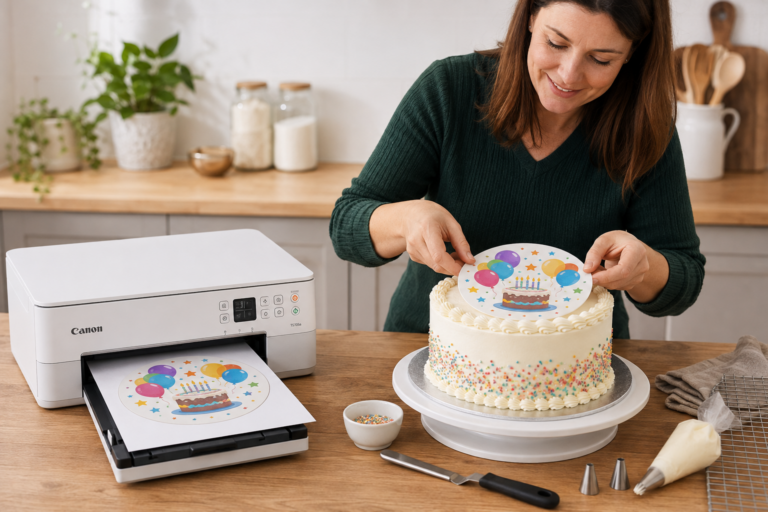
Your HobbyPrint® printer bundle is capable of producing very high-quality images on photographic papers, transfer papers or edible icing sheets, depending on the printer model and the application for which it was purchased.
Good results start with suitable artwork, installing the printer manufacturers drivers & apps, the correct printer software, compatible materials and appropriate settings. Taking a little time to understand these will help you avoid frustration and wasted materials.
Read Any Instructions Included in the Printer Bundle
Look out for any instructions that are included in the printer bundle. HobbyPrint® will always provide specialist instructions in the box, if and as required.
Reading these and following any video lkinks to our instruction videos will save time and effort later. It will also avoid potential damage that can be caused such as over cleaning the printhead on certain printer models.
Install the Correct Printer Drivers & Software
Before you start, install the manufacturer’s recommended driver or app for your particular printer model.
Caution: If you do not install the manufacturers printer driver, the printer will use a generic windows or mac driver and will not print high quality. Additionally, no access will be available to the printers maintenance functions for nozzle tests or head cleaning.
Simply connecting the printer and being able to print does not confirm that the full manufacturer’s driver is installed. A basic driver may provide fewer settings.
For a laptop or desktop computer, visit the printer manufacturer’s official website. Find your exact printer model, select your operating system, and download and install the recommended printer driver and setup software. Follow the installation instructions.
For a mobile phone or tablet, download the manufacturer’s recommended app for your printer model from the official app store and complete its setup process. Mobile apps may offer different controls from computer drivers.
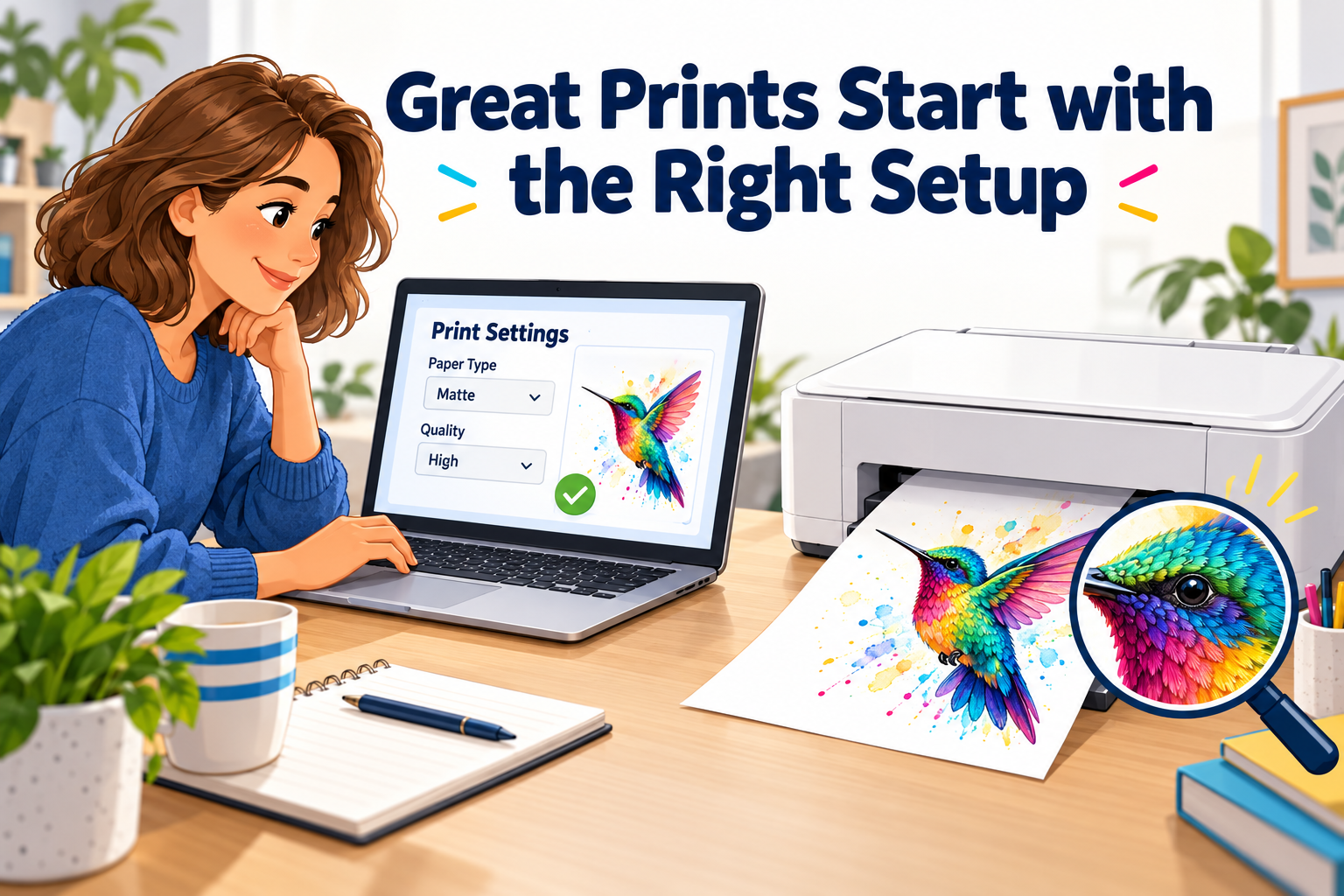
Check Your Settings Before Every Print Job
Your printer needs to be told what you are printing, which material you are using and what quality you require.
Before clicking Print, open the printer’s Properties, Preferences or Print Settings and check:
- Paper or media type: select the appropriate option, such as Glossy, Satin, Semi-Gloss or Matte, where available.
- Print quality: choose the recommended quality, such as Normal, Standard or High.
- Paper size: match this to the sheet loaded.
- Image size and scaling: check the intended print dimensions.
- Other options: check orientation, paper source, borders and any colour settings specified in your instructions.
For sublimation papers and icing sheets, follow the settings recommended for that particular material. The correct driver setting may have a different name from the material itself. We have supplied some settings for sublimation and edible printing as follows:
Sublimation: Paper settings = Matte & Quality = Highest
Edible Printing: Paer Settings = Matte & Quality can = Normal or High
You can save settings for repeated jobs, but check that the correct settings or preset are selected each time.
If you make no selections, the printer uses its existing or default settings. These may be unsuitable for your materials and may produce dull colours, reduced detail or disappointing image quality. Loading specialist paper does not automatically select the correct settings.
Mirror Sublimation Designs Where Required
Most sublimation transfers need to be printed as a mirror image so that the design appears correctly after pressing.
Where available, select Mirror Image in the printer driver, or mirror the artwork in your design software.
Mirror once only. Selecting it in both places reverses the image twice.
The finished sublimation result also depends on suitable receiving materials and the correct pressing temperature, time and pressure.
Start with a Good-Quality Image
Your image must contain enough detail for the size you want to print. A small image stretched to fill a larger area may look fuzzy, blocky or pixelated. High-quality printer settings cannot restore detail missing from the original file.
Check your artwork on screen before printing. View it at approximately the intended print size and inspect text, outlines and fine detail. If it already looks blurred or pixelated, address this before using your paper and ink.
Where possible, use the original high-resolution file rather than a screenshot, thumbnail or compressed social-media copy.
The familiar rule applies: “rubbish in, rubbish out.” A clear, detailed original gives your printer the best starting point.
Get to Know Your Printer’s Maintenance Functions
Familiarise yourself with the nozzle check, printhead cleaning and printhead alignment functions.
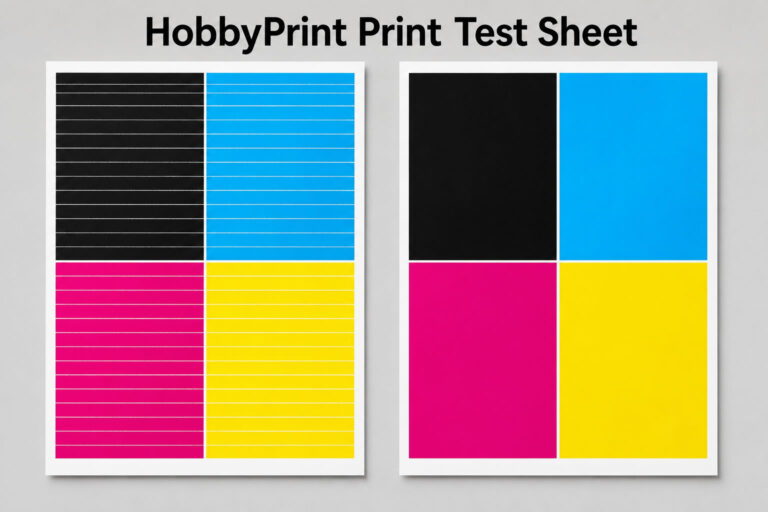
If you experience a printing problem, first check your artwork, materials and settings. Then print a nozzle-check pattern and compare it with the example in the manufacturer’s instructions.
Check that every expected colour and section is present, without gaps or broken lines.
If sections are missing, follow the manufacturer’s cleaning instructions and repeat the check as directed.
If the pattern is complete, the nozzles are firing correctly during that test. Further cleaning is unlikely to resolve an issue caused by artwork, settings, materials or alignment. A complete pattern does not rule out every other printing problem.
If you still need assistance, provide your printer model, materials used, screenshots of your settings, a photograph of the nozzle check and an example of the problem.
Your printer is supplied with access to a downloadable manual. This is a helpful reference guide to its functionality, settings and maintenance procedures. Keep a copy handy and take time to familiarise yourself with it—you will find it useful both when getting started and when investigating printing problems.