How to Fix Purple-Tinged Blues on the Epson WF-2110W – Will work on Most Epson Models
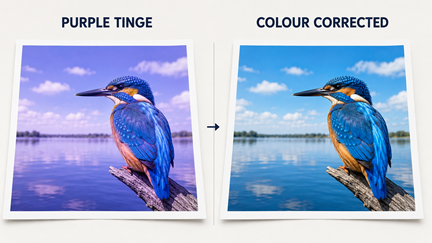
When blues print with a purple tinge on an Epson WorkForce WF-2110W, it typically indicates that the printer is adding too much magenta or not enough cyan, often due to incorrect colour management settings.
Adjustments can be made manually using the printer driver to access the manual controls. Following is a quick “how to do” to adjust and correct the blue.
Adjusting Advanced Print Settings
- Access Preferences: In Windows, open Devices and Printers, right-click your Epson WF-2110W, and select Printing Preferences.
- Enable Custom Mode: On the Main tab, select Custom and then click the Advanced button.
- Adjust Colour Controls:
- Ensure Color Controls is selected.
- Click the Advanced button under Color Controls to open the Color Correction window.
- Fix the Purple Tinge: Decrease the Magenta slider or slightly increase the Cyan slider. You can also try changing the Color Mode to EPSON Vivid or Adobe RGB to see which produces a truer blue.
- Use ICM (Alternative): If manual adjustments don’t work, go to the Extended Settings or Advanced tab and select ICM (Image Color Management). This automatically adjusts printout colours to match your screen.
Essential Troubleshooting
- Check Ink & Nozzles: A clogged cyan nozzle can make blues look purple because the printer relies more on magenta to compensate. Run a Nozzle Check and Head Cleaning from the Maintenance tab.
- Match Media Type: Ensure the Media Type in the driver matches the actual paper you are using (e.g., Plain Paper vs. Photo Paper), as different coatings absorb ink differently.
Saving The Settings For Later Use
To save these specific color adjustments as a preset on your Epson WF-2110W, follow these steps within the Printing Preferences menu:
- Finalise Your Adjustments: Make sure you have already set your Cyan/Magenta sliders or ICM settings exactly how you want them in the Advanced Color Controls window.
- Add/Remove Presets: On the Main tab of the Printing Preferences window, look for the Select Setting or Print Presets list on the left-hand side. Click the Add/Remove Presets button.
- Name the Preset: A new window will appear. Type a descriptive name, such as “True Blue Fix” or “Color Corrected Plain Paper”, in the Name field.
- Save: Choose an icon if you like, and click Save.
Now, whenever you print, you can simply select “True Blue Fix” from the presets list on the first screen to instantly apply your custom color profile.
Using AI to Help Correct Colours Manually
Note: If you have a colour representation issue try using AI and type in something like
“My red is printing to orange so can you assist me in adjusting the colour back to red on my Epson xxxxxx printer model, using the colour adjustments in the printer driver please”
It is not always that simple but in many instances it will help you out. Remember that when you use AI give a complete description of what you want AI to do and it really will herlp you solve many issues. The AI that we have used is Chatgpt, Copilot and Google Gemini. All are free, so why not give them a try!